





So you’re ready to jump in and start setting up your teacher gradebook? Congratulations! You’re on your way to get organized and finally, stay on top of your grades. This Google Drive gradebook template will have you all set to input grades, automatically calculate averages, control assignment weighting, track missing work and generate student and whole class reports.
You get all 6 looks with your gradebook. On the START HERE PDF in your download, click the link for the look you want, then follow along with the videos below.

Modifications
This gradebook is designed for use as-is, with settings provided to help you adjust it to suit your needs. Modifications beyond what’s outlined in the settings may disrupt the formulas and intended functionality. For that reason, support cannot be provided for any issues resulting from custom adjustments beyond the included settings.
If you decide to explore or test modifications, please note that these changes are made at your own discretion and support will not be provided for custom modifications made. I recommend creating a backup copy of the gradebook before making modifications, ensuring you’ll have a fresh, unaltered version to fall back on if needed.
Gradebook Set Up
The teacher gradebook videos below are intended to support you along the way through the initial setup of your gradebook. Watch and follow along and you’ll be ready to input grades in less than 30 minutes!
Setting Up Subjects
Enter your subjects on the settings tab & each subject grading sheet.
Add Students
Type your students’ names on the Student List tab. First name or last name first, whichever you like. Want them alphabetical? Type them in A to Z order. Once they’re in, don’t sort the list or insert or delete rows. Marks stay put on every subject tab, so moving names mixes them up. New student mid-year? Add them at the bottom. To remove a student, just clear their name, and their marks drop out of the reports.
Add Icons
Icons are optional. If you’d like to see them, you can copy and paste them from the settings tab and use the fill colour button to select the matching background colour.
Omitting Grades
If your student is absent, or there’s a grade you want to leave out of their average, type any letters in that cell. Letters are skipped, so they don’t count for or against the student. A blank cell is skipped too. Want a zero? Type 0. You can use any letters you like. I use “ABS” for absent and “EX” for exempt. One letter is extra handy. Type M for missing work. It’s skipped in the average like any other letter, but it also shows up on your missing work reports, so nothing slips through the cracks.
Settings
The settings sheet is where you’ll find all the main settings including options for turning assignment weight on or off, naming your subjects, adjusting percentages and how they relate to grades, choosing how grades are averaged, colour coding settings, and the copy & paste icons. Most teachers average by percentages, so that’s how your gradebook comes set up. Each assignment counts the same, no matter how many points it’s out of. Prefer your grades calculated by total points instead? No problem. Switch the Average by box to Total Points and bigger assignments will carry more weight.
Grade Colour Coding
How to adjust the colour coding, through the settings sheet, that will show up on reports.
Term Dates & Settings
How to set your term dates and adjust the terms’ weight, if desired.
Subject Settings
How to assign categories to subjects and enter in subject units.
Using Weighting
An overview of three ways to assign weighting: by term, category, or on individual assignments.
Turning Weighting Off
How to turn weighting off to use a simple average calculation.
Entering Grades
How to enter grades using percentages, fractions, and a 4-point, or 5-point scale.
Class Average Row
Right above your first student, there’s a class average row. It shows the class average for every assignment, plus the class average for the whole subject on the left. It fills in by itself as you enter marks. Only students with a mark are counted, so blanks and letters (like EX or M) don’t pull the average down.
Don’t need it? Right-click the row number and pick Hide row. Your averages and reports keep working, and you can unhide it anytime.
Using Reports
Your gradebook has 8 reports: 5 for each student (Overall Report, Progress Over Time, Missing Work Report, Detailed Report and Simple Report) and 3 for your whole class (Teacher Report, Students to Watch and Class Missing Work). This video covers the Overall, Detailed, Simple and Teacher Reports, plus how to print or save any report as a PDF. Quick update: the two Overall Reports in this video are now one. Use the dropdown at the top to show or hide the class average. The newer reports have their own videos below.
Missing Work
Type M: On a subject tab, type M for any assignment that’s missing. The cell turns bold and fills with that subject’s colour, so it’s easy to spot. The M is skipped in the average, just like any other letter, and it shows up on both missing work reports. Only M counts as missing (lowercase m and extra spaces are fine). Typing out the word “Missing” won’t show up on the reports. If the work never comes in, swap the M for a 0 so it counts against the average.
Missing Work Report: Open the MISSING WORK REPORT tab and pick a student at the top. You’ll see every assignment they have an M for, across all subjects, with the date, subject, assignment and total points. Pick a term, or All for the whole year. Use the Show dropdown to choose what else to list: Units & Categories, just Units, just Categories, or Assignments only. It’s literally made for parent emails and conferences.
Class Missing Work: This one is like the Teacher Report, but for missing work. Every student is listed down the side and every subject across the top, with how many missing assignments each student has, plus a total. Pick a term at the top, or All. It’s the quickest way to see who needs a nudge.
Progress Over Time
Pick a student at the top to see their grade in every subject, term by term, plus their year grade. The dates for each term sit right under the term name, and a little trend line shows if they’re going up or down.
Use the class average dropdown at the top to show or hide the class average. Hide it when you’re sharing the report with families. Only terms with a start date on your Settings tab show up, so it works for 2, 3 or 4 terms.
Students to Watch
This report lists every student who might need extra support. At the top, set two things:
- Grades below: pick a grade from your own grading scale, or Off.
- Missing work: how many missing assignments to flag. Type 0 to turn it off.
Pick a term, and the list fills in with every student under that grade or with that much missing work. It starts at below 50% or 2 or more missing assignments, so change them to whatever works for you.
Print All Reports
Print a report for every student at once. On the cover page, pick the report (Overall Report, Progress Over Time or Missing Work), the term, and whether to show the class average. It starts on Off so your gradebook stays quick. Pick a report to build the pages, then set it back to Off when you’re done. For missing work, you can print only the students who have missing work, or everyone.
After you change a dropdown, give it a few seconds to load. Then go to File > Print, or File > Download > PDF. Each student gets their own page. For the best fit, use Normal margins, Letter or A4, and Fit to width. The first page shows your picks, so skip it in your print settings if you don’t need it.
Frequently Asked Questions
Can you assign weights to assignments?
Yes! You can designate different weights to terms, individual assignments, and assignment categories. You can also choose to ignore these settings, turning them off.
Does each sheet average the grade?
Yes! Each subject sheet shows a student average.
I teach multiple classes of students. How can I make this teacher gradebook work for me?
The best way to handle this is to set up a separate gradebook for each class. You can do this with a click of a button, by making a copy of the gradebook for each class that you teach.
How many assignments per subject?
You can input 200 assignments per subject.
Can I add rows or columns?
No, adding rows or columns will disrupt the formulas essential to the gradebook’s functionality.
Can I modify this grade book?
While modifications are possible, I cannot guarantee the grade book will function correctly if altered. You are welcome to make changes after purchase, but please note that support is not available for modified versions of the grade book, aside from adjustments available within the settings pages.
Does entering a mark of zero, does it count as 0% (included in the student’s average) or exempt/no mark?
If you enter a 0, it counts toward the average. If you type letters like ABS for absent or EX for exempt, that assignment is skipped and doesn’t count for or against the student. Type M for missing work. It’s skipped too, but it also shows up on your missing work reports.
Is there a way to view the grades by student, in addition to seeing them by subject?
Yes! The Overall Report shows a student’s grades across every subject. Progress Over Time shows the same grades term by term, so you can see how they’re growing.
How does the gradebook calculate final grades when multiple weighting layers are turned on?
The weighting stacks, the same way a report card works.
- Each assignment becomes a percentage. Score ÷ total possible points. 15 out of 20 = 75%.
- Assignments make the category average. With assignment weighting on, each assignment counts by its weight, but only inside its own category. A 10 counts twice as much as a 5.
- Categories make the term grade. With category weighting on, each category counts for exactly its %, no matter how many assignments are in it.
- Terms make the year grade. With term weighting on, each term counts for exactly its %.
Don’t want a layer? Tick Ignore for it on the Settings tab. That layer just counts everything equally, and the other layers keep working.
Here’s an example. Tests are 25% and Quizzes are 75%. A student has three quizzes at 100% and one test at 60%. Quizzes average 100% and Tests average 60%. So the grade is 100 × 75% + 60 × 25% = 90%. Three quizzes don’t outvote one test. Each category gets its exact share.
A category with no marks yet doesn’t count against anyone. It sits out until its first mark goes in, and the other categories fill its space. Terms work the same way, so in September the year grade is just the Term 1 grade.
One more tip. Your category %s for each subject should add up to 100. The Total under that subject turns red if they don’t.
Does the gradebook calculate grades by total points or by assignment percentages?
You get to pick. There’s an Average by box on the Settings tab with two options.
- Percentages (the default). Each assignment becomes a percentage first, then those percentages get averaged. Every assignment counts the same, big or small.
- Total points. Inside each category, the points get added up first: points earned ÷ points possible. So a 50-point project counts more than a 10-point quiz.
Say a student has these scores: 8/10, 18/20, 12/15 and 20/50, all in the same category.
- By percentages: 80%, 90%, 80% and 40% averaged together = 72.5%
- By total points: 58 points earned out of 95 possible = 61.1%
Both are valid ways to grade. They just give different results. Your weighting works either way. With total points, assignment weights scale the points, so a 10 counts twice as much as a 5.
How do I track missing assignments?
Type M in the cell for any missing assignment. It’s highlighted on the subject tab and shows up on the Missing Work Report (one student) and Class Missing Work (your whole class). See the Missing Work video above.
Can missing work count as a zero?
Not automatically. An M is skipped, so one late assignment doesn’t tank a grade while you wait for it. If the work never comes in, just change the M to a 0.
Can I hide the class average before I share a report with families?
Yes! The Overall Report and Progress Over Time both have a dropdown at the top to show or hide the class average.
I bought the gradebook a while ago. How do I get the new reports?
Re-download it from My Purchases on TpT and make a fresh copy of your look. Your current copy keeps working exactly as it is. Grades don’t move over automatically, so the start of a new term or school year is the easiest time to switch.
Questions and Feedback
I am confident that you will love your teacher gradebook as much as the other teachers who have been using it. If you use it, and love it, please consider leaving a review! Reviews are everything to small business owners, like me!
Have additional questions about using your teacher gradebook? Shoot me an email at [email protected], I’m more than happy to help! 🙂
Don’t Have the Gradebook Yet?
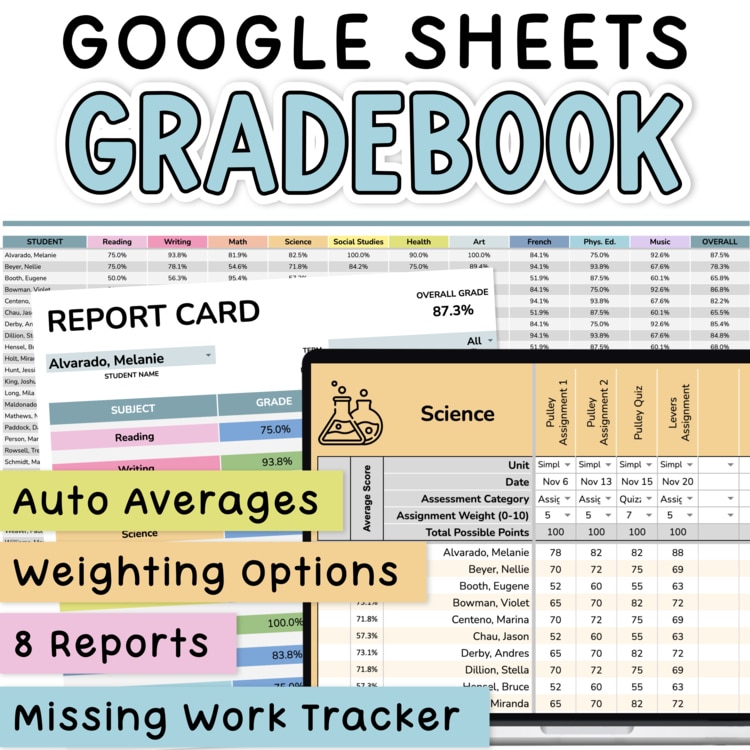
Everything you just watched comes with the Digital Gradebook. Weighting, automatic averages, report cards, missing work tracking and all the reports, in 6 colour looks. You type the marks in and it handles all the math.
Grab the Digital Gradebook here.
Want more on using a digital teacher gradebook?
You might be interested in these blog posts:









One Response